Installing your Diary

What do I do now?
You’ve got a diary sharing link so now you need to install it somewhere. You have a number of options:
- iPhone/iPad Calendar
- Mac Calendar
- Google Calendar
- iCalSync
- Fire iCalSync
- iCalendar
- Microsoft Outlook
- Others
The Critical Step
Regardless of which calendar you are going to share it into, you must do this section first!
Click on the link which you have received. You will see a diary listing similar to the image below.
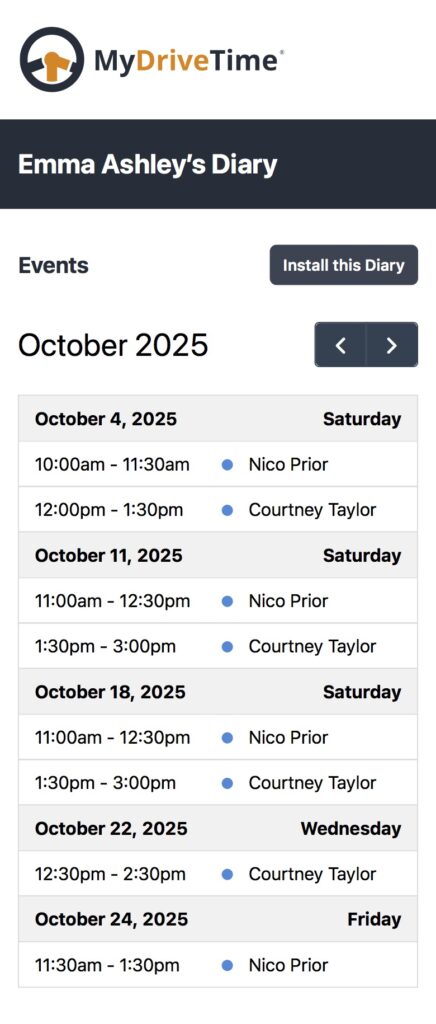
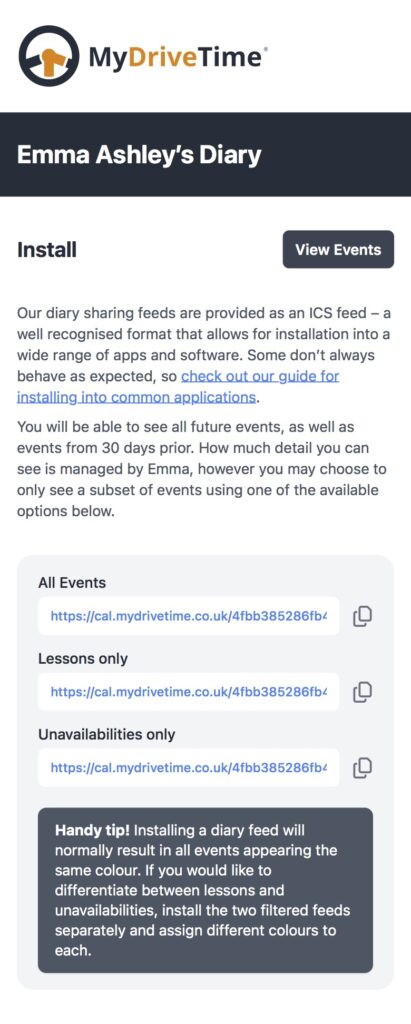
This shows all the items which are going to be inserted into your chosen diary. Click ‘Install this Diary’. This will give you 3 options as shown below, one for all events, one for lessons only and one for unavailabilities only. Choose which one you want and click the copy icon. That will create a url for the feed, which we will use in our calendar program to add the diary.
iPhone / iPad
Do you own a Mac?
If so, you may wish to follow instructions for setting up your calendar on a Mac which will then be synced to all of your Apple devices automatically.
- On your device, tap Settings → Calendar → Accounts.
- Tap Add Account.
- Tap Other.
- Tap Add Subscribed Calendar.
- Paste the .ics URL from the Critical Step above into the corresponding field on the Subscription screen.
- Hit Next.
- Hit Save.
Mac
- In the Calendar app on your Mac, choose File > New Calendar Subscription.
- Paste the .ics URL from the Critical Step above into the field provided.
- Click Subscribe.
- Enter a name for the calendar in the Name field, then click the adjacent pop-up menu and choose a colour.
- Click the Location pop-up menu, then choose an account for the subscription.
- If you choose your iCloud account, the calendar is available on all your computers and devices that are set up with iCloud.
- If you choose On My Mac, the calendar is saved on your computer.
- Adjust the Auto-refresh rate – usually you will want ‘Every 15 minutes’ or ‘Every hour’.
- Click OK.
Google Calendar
Please note: After setting up sharing, any subsequent changes you make to your MyDriveTime diary might take up to 12 hours to show in your Google Calendar. This is a Google restriction which is unfortunately outside our control, so if possible we recommend using one of the other options, as these can be relied on to read the MyDriveTime calendar feed more frequently.
- Open Google Calendar.
- Next to ‘Other calendars’ on the left, click the ‘+’ symbol (Add other calendars).
- Select ‘From URL’.
- Paste the .ics URL from the Critical Step above into the field provided.
- Click ‘Add Calendar’. The calendar will appear on the left side under ‘Other calendars’.
Android
Please note: This requires the installation of another app to manage calendar syncing.
- Go to the Play Store and download one of the following apps:
- Open the app and tap the ‘+’ symbol in the top right corner to add a new calendar.
- Enter a calendar name such as ‘MyDriveTime’.
- Paste the .ics URL from the Critical Step above into the field provided.
Select a sync period and colour, then save. - Open up your Android calendar app, and you should now see your MyDriveTime calendar.
Microsoft Outlook
- In Outlook, click Calendar in the bottom-left corner of the window (if necessary).
- Right-click My Calendars (or any other calendar group’s heading) on the left-hand side of the screen to display the options for that group.
- Hover over Add Calendar and select From Internet… in the sub-menu.
- Paste the .ics URL from the Critical Step above into the field provided.
- Click Yes to subscribe to this internet calendar and add it to your list of calendars.
Other
If you are trying to install the diary share into any other calendar program, then the process will be very similar to the above but you will have to work out the specifics.
As always, if you find any issues with this blog or anything else, please contact us at support@mydrivetime.co.uk.