Introduction
Do you ever wonder what goes on in the head of your average 17 year old? Are you astonished that they actually manage to dress themselves sometimes or manage to arrive anywhere on time?
At MyDriveTime we don’t have the answer either, but we do have the Student App which helps you to help your student in their driving journey not only by providing some administrative functions but also by supporting the student in the learning process.
If you have never considered using the student app or have used it and want to know what the student can actually see and do, then this blog post is for you.
The Student App
MyDriveTime’s student app serves as a means of communication between instructor and student and vice versa. Not only does it do the simple stuff like telling them when their next lesson is, it provides a complete record of their learning journey from before the first lesson right through to the practical test and beyond! It gives them access to the progress they’re making in respect to the syllabus along with any resources that you have made available to them. You can make the student app an invaluable asset for your students giving them a distinct advantage over all their friends.
Administrative Support
The student app gives your student information relating to the logistics of their learning journey, such as the date, time and location of upcoming lessons, their current credit and their progress through the syllabus thus far plus the lesson themes that they are currently working on.
The Terms & Conditions document you send can be viewed and signed in app – not with the tick of a box, but with a drawn digital signature.
Lesson reminders arrive as a notification and can be ‘snoozed’ by the student until a time that suits them, making it even easier to adapt to their needs.
The diary gaps you want to fill, by offering your students additional lessons are also made available in-app for them to consider and then accept or decline, with instant feedback to you.
Being able to rely on the app to do some administrative communication automatically for you is tremendously beneficial, saving you time and effort – and it is all included within your monthly subscription.
Although the student app does not need to be open all the time, it is important that notifications are turned on for MyDriveTime so please emphasise this to your students.
Learning Support
In addition to the administrative support that the student app provides, it can also provide considerable learning support, if you choose to use it.
-
- Journey Tracking – this allows your student to see where they have been on their lesson. It serves as a useful reminder of any specific problems they have had and they could then drive it again privately if they wanted to.
- Lesson Summary – this allows your student to see what you have written about their lesson. This may be in the form of a simple, short, descriptive summary or it could be a longer description covering aims for the lesson, progress against those aims, areas for improvement, plans for the next lessons, hints, tips, things to watch etc.
- Reflective Log – this allows your student to record their reflections on the lesson, how they felt it went, things they need to work on, things they have learned, things that worry them. You have the ability to set the questions but they supply all the answers and they can be extraordinarily revealing…
- Progress – this allows the student to see the syllabus in its entirety, including their current lesson themes, and how they are doing in relation to it.
- Resources – this allows your student to access resources that you have made available to them whether that be documents, diagrams, photos or videos.
All of the above, presented in a social media type feed, helps your student to feel that learning to drive isn’t just a number of unrelated hours spent with a driving instructor but, instead, a continuous journey of learning a lifetime skill.
Videos
In order to help you to understand what the student app looks like and can do for you and your students, we have created a video just for you.
Click here to watch the video.
p.s., It also shows you what the student will see.
Not only that, but in order to help your students to understand the student app, we’ve done a video for them as well (and in case you think I have regressed about 50 years, it is voiced by Emily Hill, a star in the making!) Click here to watch the video.
And Finally…
IT’S FREE!!!!!
In other words it is already included in your monthly subscription including terms and conditions, lesson reminders and diary gap notifications.
As always, if you find any issues with this release or anything else, please contact us at support@mydrivetime.co.uk.
TL;DR
Release 2.11.0 sees the introduction of Diary Gaps; a brand new feature that helps you turn space in your diary into a booked lesson. Create a ‘diary gap’ in your diary, select the students you’d like to offer it to, and wait for one to snap it up. When they do, the ‘diary gap’ is automatically converted into a booked lesson in your diary, helping you to maximise your time and earning potential.
Diary Gaps – The Essentials
We’ve all experienced those sudden cancellations and faced the problem of trying to fill the gap with someone else at very short notice or twiddling our thumbs over another cup of coffee. Our diary gaps feature solves this problem.
You can now advertise a gap in your diary to as many of your students as you wish and making use of an intelligent algorithm we’ll even recommend those students who are the best fit for that gap. The first student who responds positively to the invitation will automatically put a confirmed lesson in your diary.
Optionally, you can specify that, if the gap is accepted, it creates a provisional lesson instead of a confirmed one.
When you send the invitations to your students, they will receive a notification and will be able to accept, decline or ignore any gap that is being offered. If they choose to accept the gap, they will be able to select their pick-up and drop-off points and the lesson will be automatically created in your diary.
Adding a Diary Gap
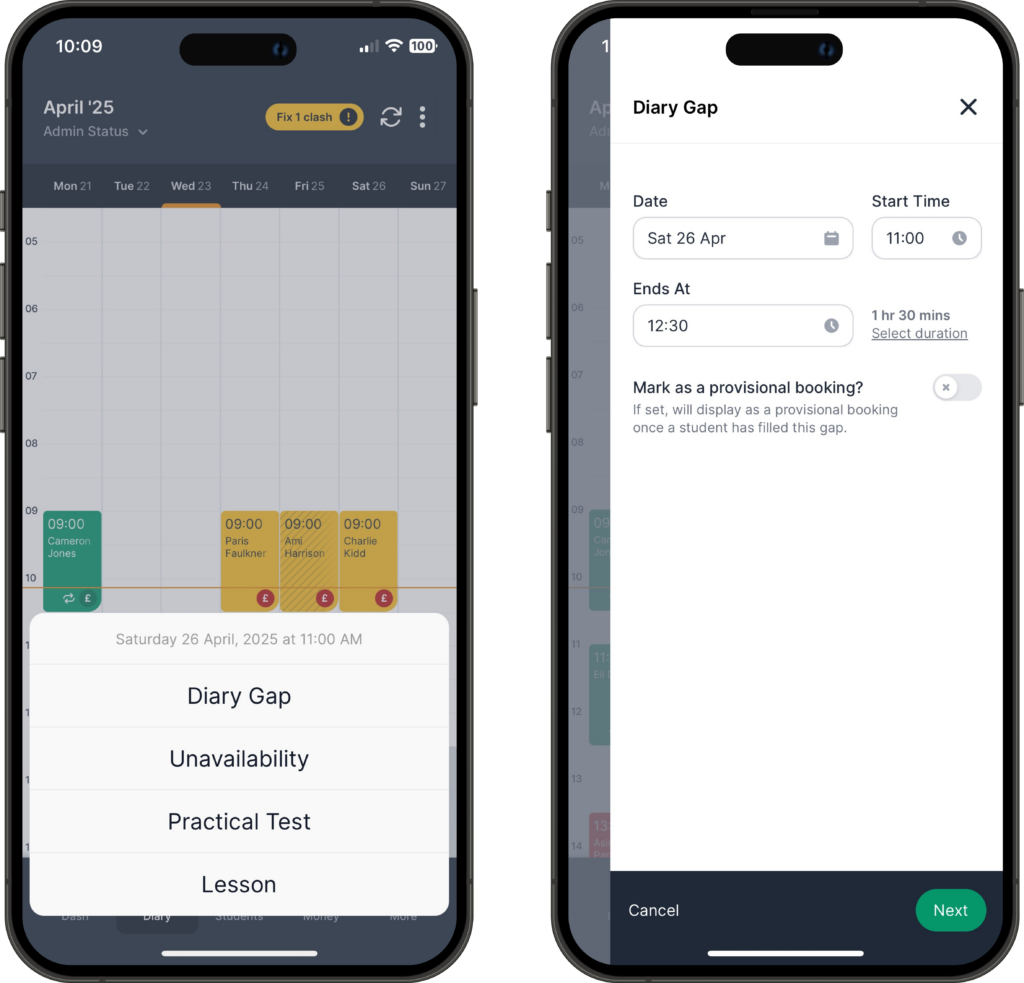
Adding a gap is done via the same mechanism as adding a lesson – it’s a new option – and ultimately it will add a lesson of your default type and duration.
Confirm the time that you want the lesson to start, change the duration if you wish and specify whether you want the subsequent lesson to be provisional.
Student Selection
The app will recommend students which it believes to be the best match for your diary gap and list these in order of suitability.
The longer the coloured bar, the more suitable the student is. You are not tied to only inviting recommended students, you can exclude or include students from anywhere in the list just by changing the toggle. You can also invite all your students or not as you require.
Where a student does not have the student app, identified on the list by a warning, they will not receive notification of the gap. However, if they subsequently sign up to the app, they will receive any suitable diary gaps which are still available.
Note: The criteria for the suitability score is a closely guarded secret so we can’t go into too much detail but you can see the score that they get by hovering over or clicking on the coloured bar.
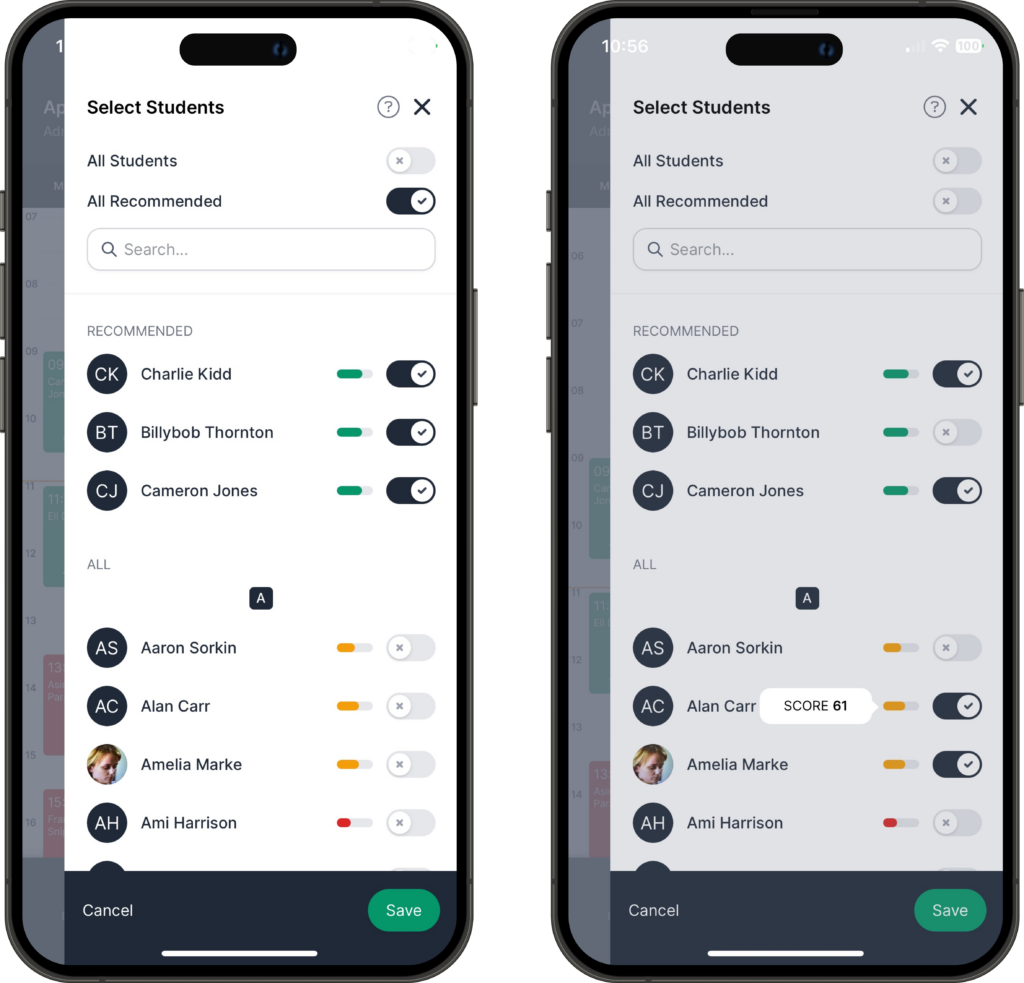
When you click Save, the invitations will be sent to the selected students and the gap will be created in the diary.
Changing a Diary Gap
You cannot change a diary gap. However, you can send it to more students and you can re-invite those already invited but you cannot withdraw an invitation already made. If you want to do this, you will need to delete and re-create the diary gap.
To offer it to more students, click on it and then click ‘Offer to more students’. This will show you any recommended students not yet invited plus all the other active students who are available. It will exclude anyone already invited.
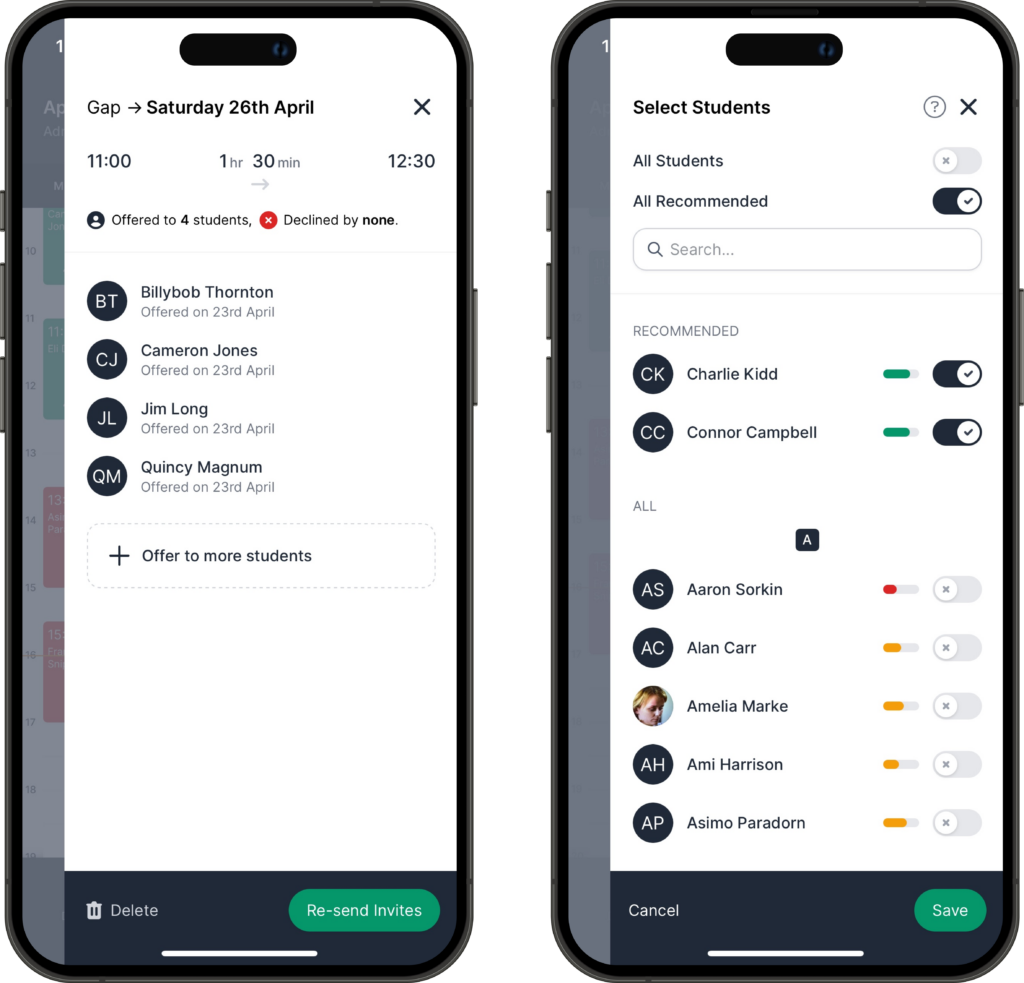
Note: If you choose to re-send the invites, it will not send them to any students who have already declined the offer. However, if they just ignored it, re-sending the invite will send it to them again.
Deleting a Diary Gap
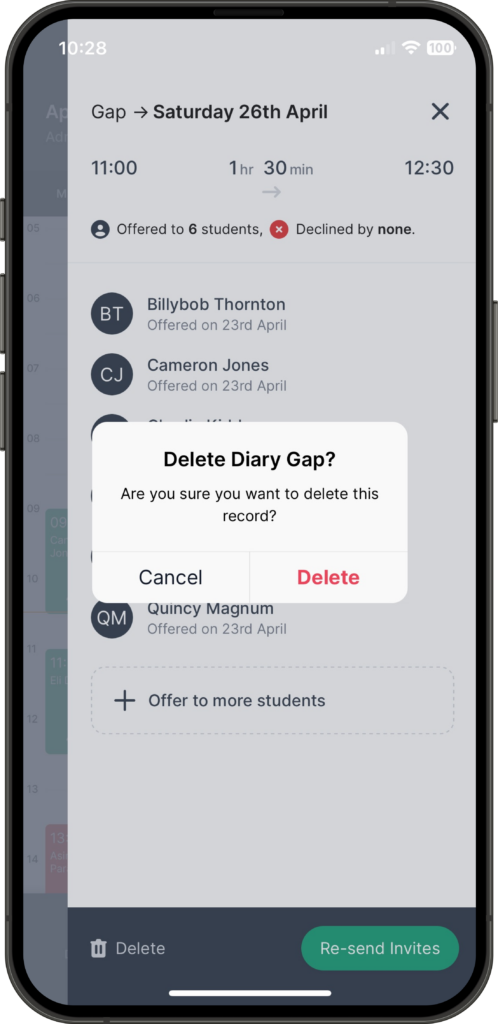
If you decide that you no longer require the gap or that you want to change it, you will need to delete the gap which you can do by clicking the ‘Delete’ button and then confirming the deletion.
The Student App
So, what happens at the other end?
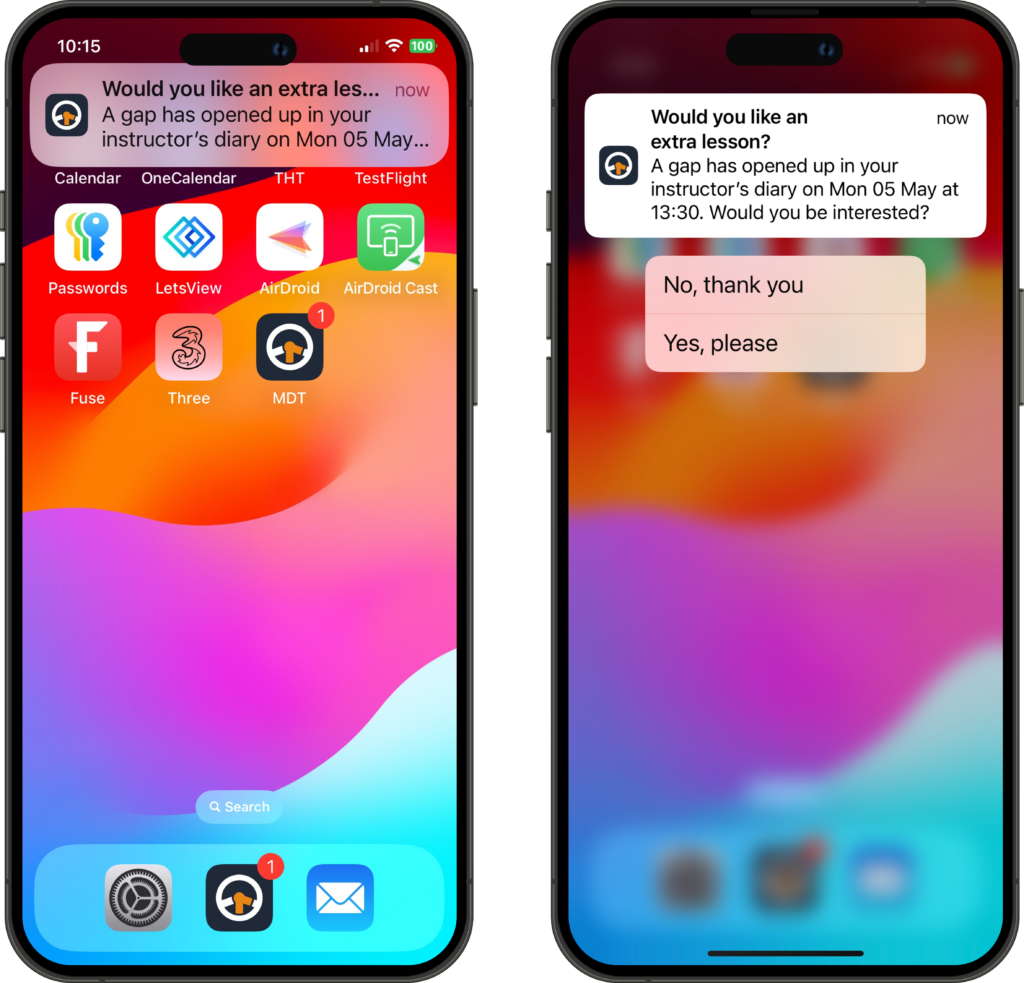
Any students that you have selected, who use the student app and have notifications turned on, will receive a diary gap notification. This is one of the reasons why we recommend that your students allow notifications from the MDT app.
If they click that notification or go into the app anyway, they will get a pop-up showing any and all available diary gaps that they have been invited to take. Alternatively, they can drag the notification open and respond directly using the options available.
If they open the app, they can accept or decline the diary gap by clicking the relevant button. Alternatively, if they want to come back to it later or want to keep the option open, they can ignore the diary gap by clicking the X in the top right corner.
Note: Diary gaps are processed on a ‘fastest finger first’ basis. Therefore, the first student to complete the booking process will get the booking. We do not ‘hold it’ for 15 minutes while they consult their friendship circle via social media! If they are unlucky enough to miss out, we let them down gently.
Accepting the Diary Gap
The student gets the option to select their pick-up and drop-off addresses if they want to with their default address being shown first. They can also add a new address although we would recommend that they discuss that with you as it may not be convenient.
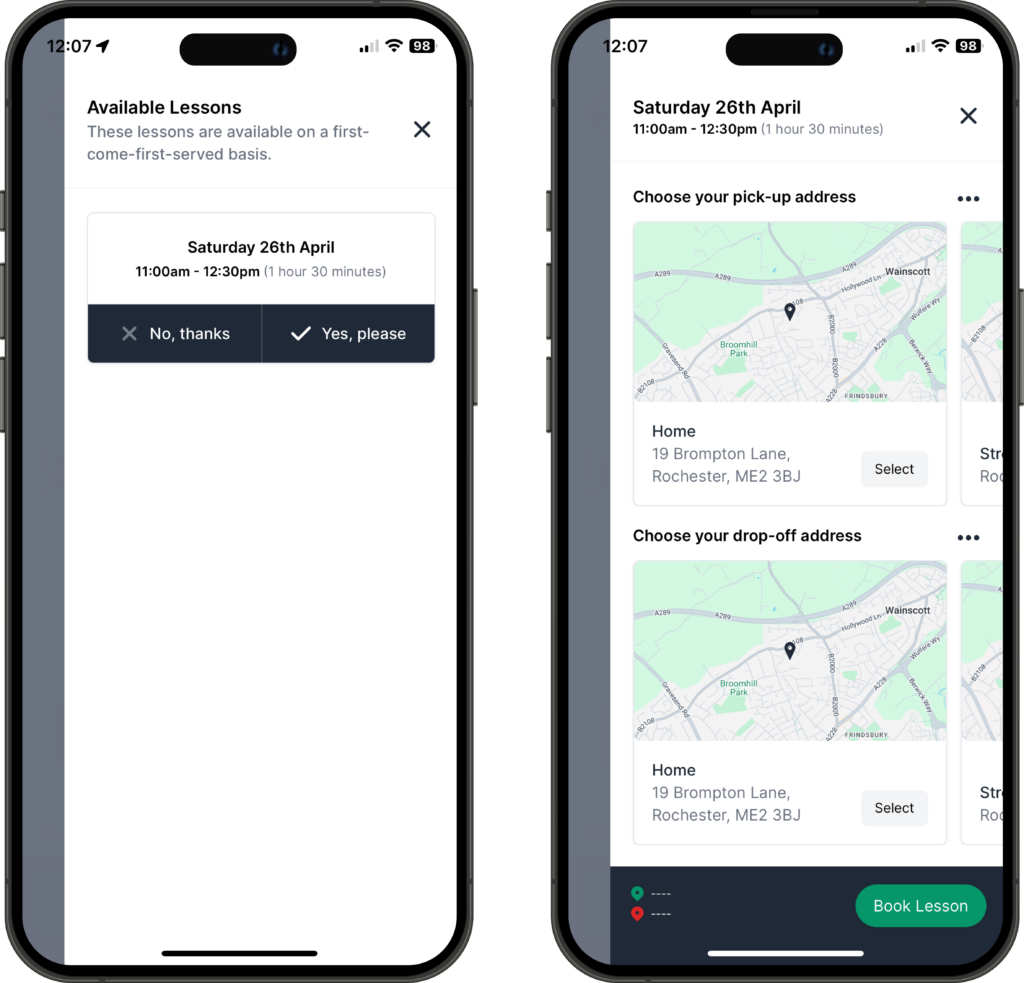
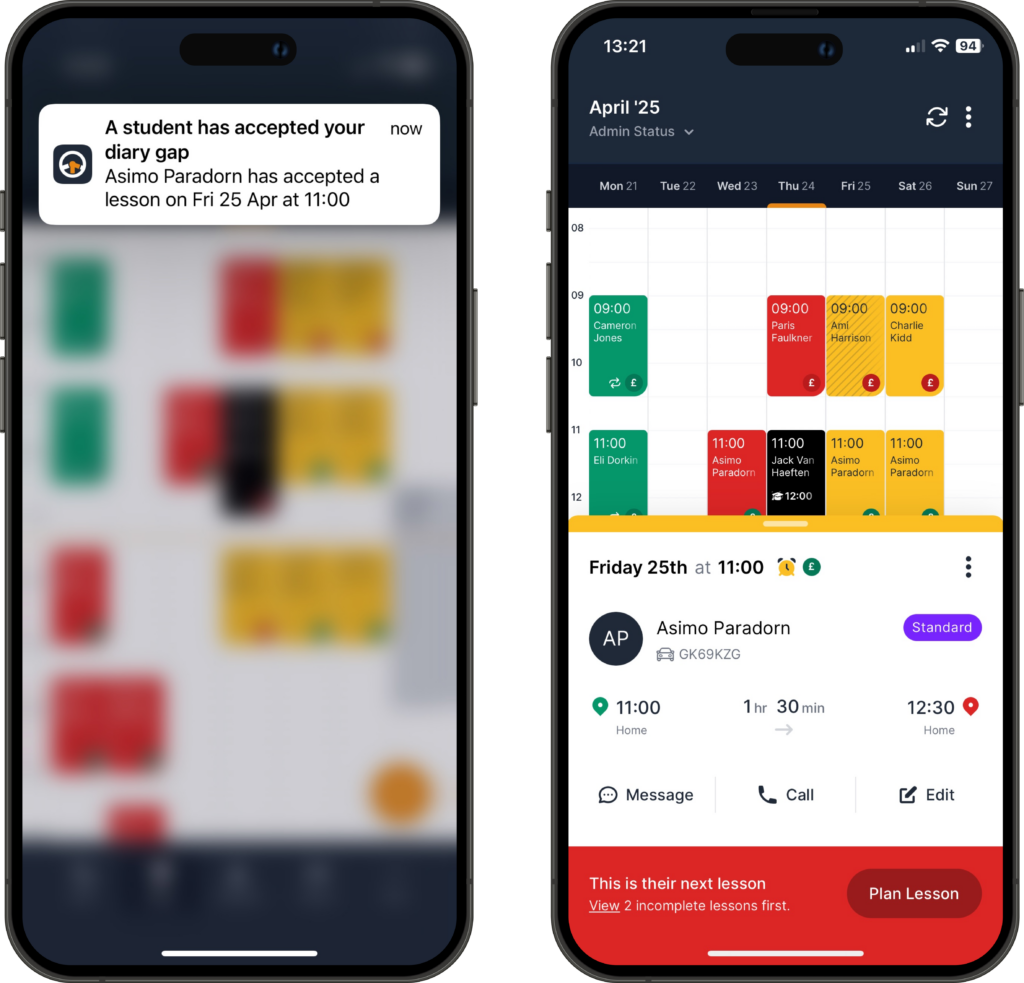
Once they choose ‘Book Lesson’ the diary gap will be deleted and a lesson put in its place in your diary. You will receive a notification that the lesson has been booked, which if you click on it will bring up a preview of the lesson in your diary.
Declining the Gap
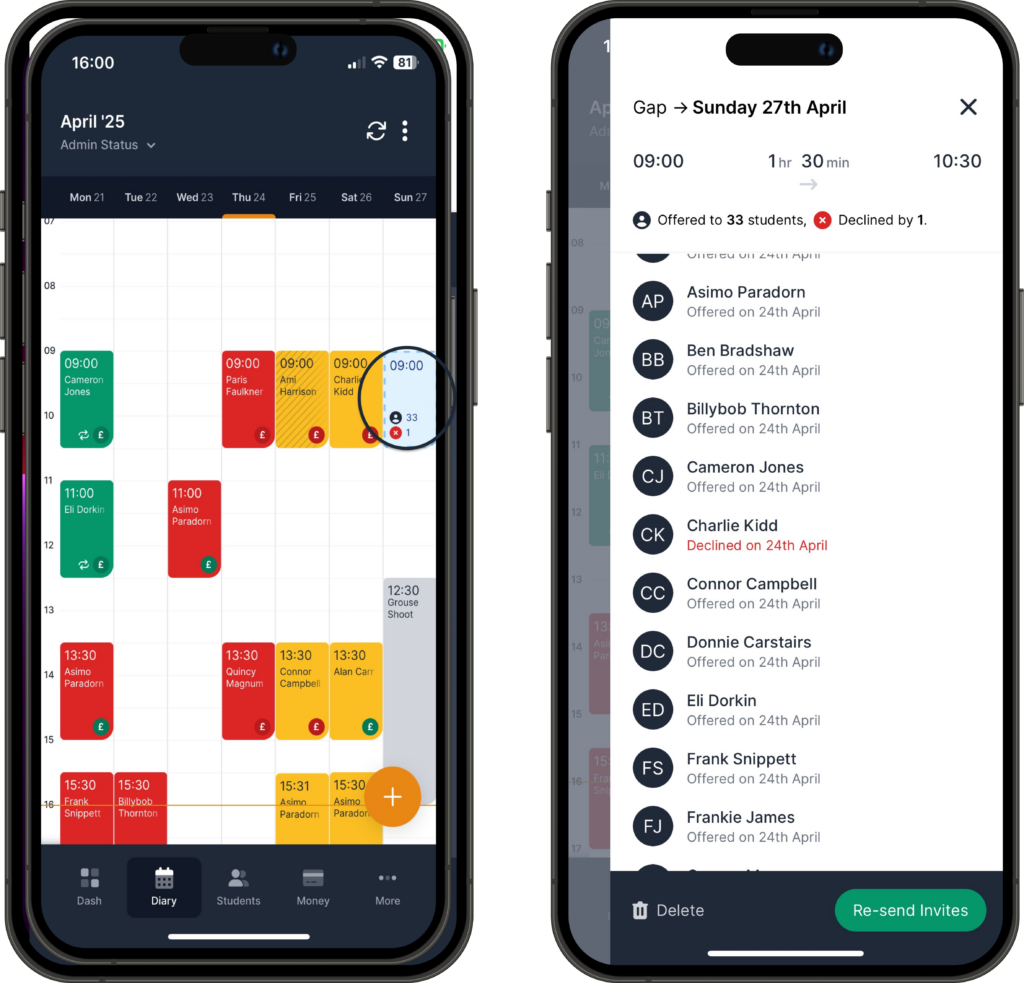
If the student declines the gap, your diary will be updated accordingly with a little cross in a red circle followed by the number of students who have declined the gap. If you click on the gap itself, you can see who has declined and when.
And Finally…
Not Clever Enough? Too Clever?
In designing this new feature we have tried to add some intelligence to make your job easier, specifically in relation to the recommendations of students to fill any gap that you have. We believe the recommendations it makes will be sensible but now we need your feedback.
You know your students much better than we do so you may notice that a particular student is always being left out of the recommendations or is always at the top when you know better. If there are persistent anomalies i.e., the same student over and over again, or you think the app should take something else into account when making its recommendations, why don’t you let us know via the usual method?
And as always, if you find any issues with this release or anything else, please contact us at support@mydrivetime.co.uk.
What are they?
Do you ever get someone in your car who cannot grasp something that every other student has understood without any problem at all? Isn’t it frustrating? What do you do? Say the same thing over and over again with a slight increase in volume each time? Roll your eyes and move on to the next subject in the hope that they don’t notice? Or do you try to find another way of explaining it until they do understand it?
We’re all different and something that brings clarity to one person may not do the same for the next. Good instructors know this and will try to find a different way of looking at it, perhaps a different way that makes more sense to the person who is trying to understand it.
Likewise, sometimes we need to use an alternative view, look at things in a different way, take a different perspective to bring clarity to what we are seeing in order to gain more benefit from it.
This is what diary lenses is all about. It gives you a different view of your diary, a view which you can influence to make it more meaningful.
Where are they?
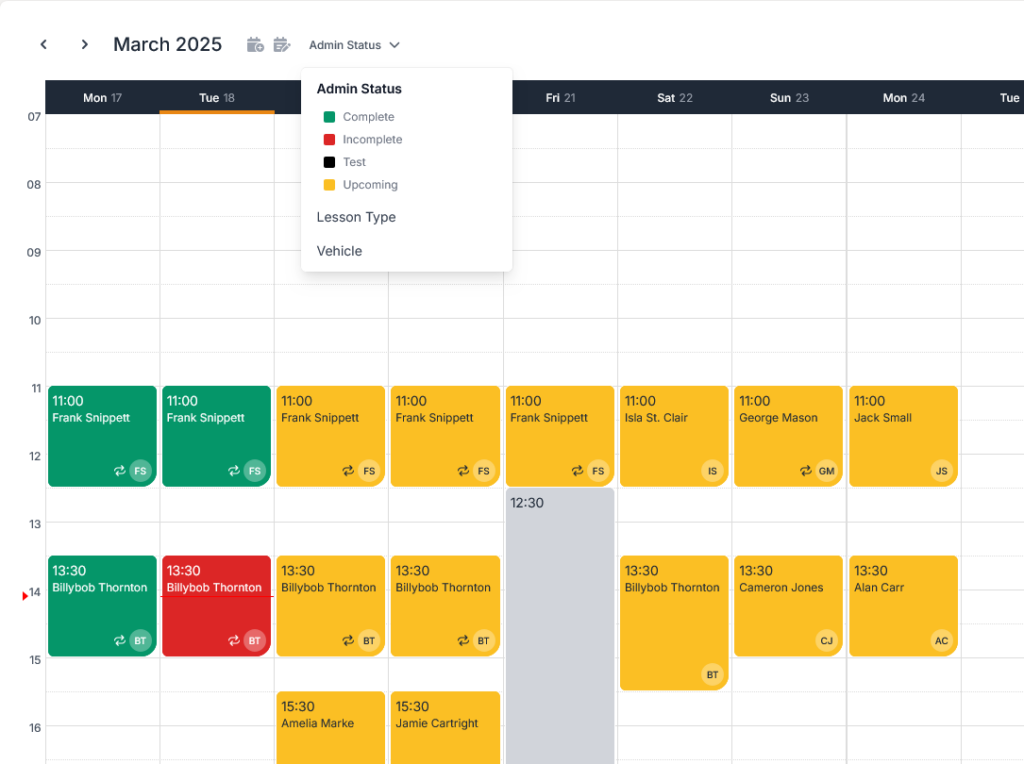
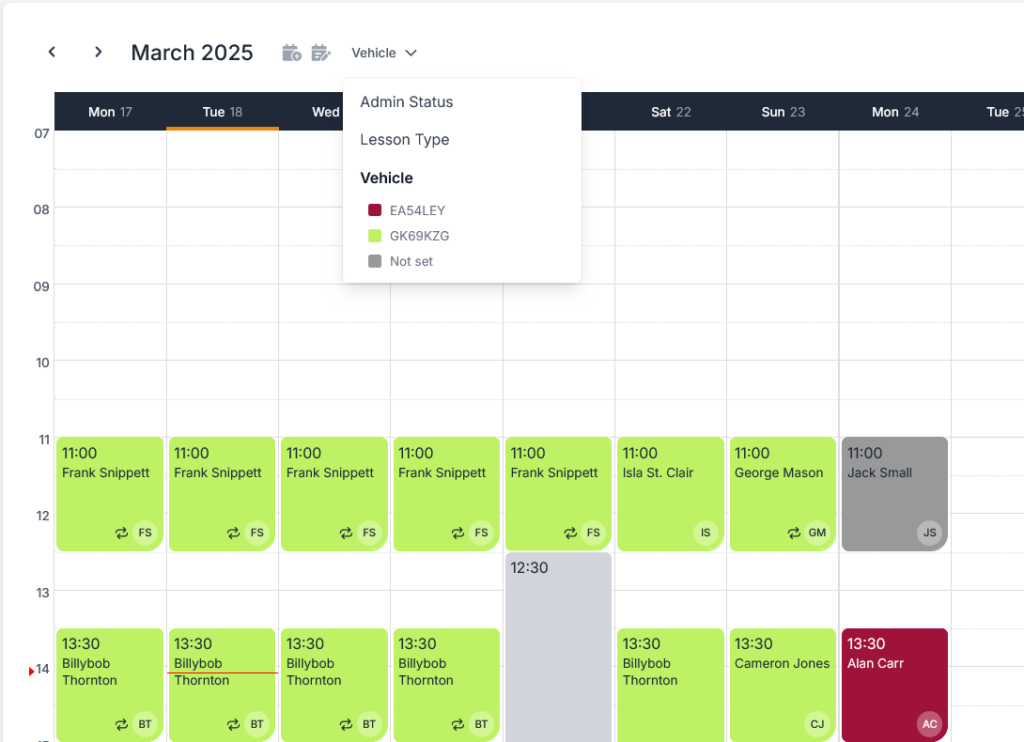
On both the mobile app and the web app there is a diary lens dropdown menu at the top of the diary. The options on the menu are different depending on whether you are on the web or the mobile. On the latter you have 2 options, Admin Status and Lesson Type; on the former you have both of those plus Vehicle. The lenses are mutually exclusive i.e., you cannot look at Admin Status and Lesson Type at the same time.
The chosen lens is remembered even if you go to other tabs e.g., Students, and it will only return to the default lens if you refresh the screen or log out and log in.
Admin Status
This is the default view and shows whether lessons are upcoming (yellow), past and incomplete (red) or past and complete (green). For the sake of completeness we also include tests which always appear in black. You cannot change these colours as they are set by the system.
Lesson Type
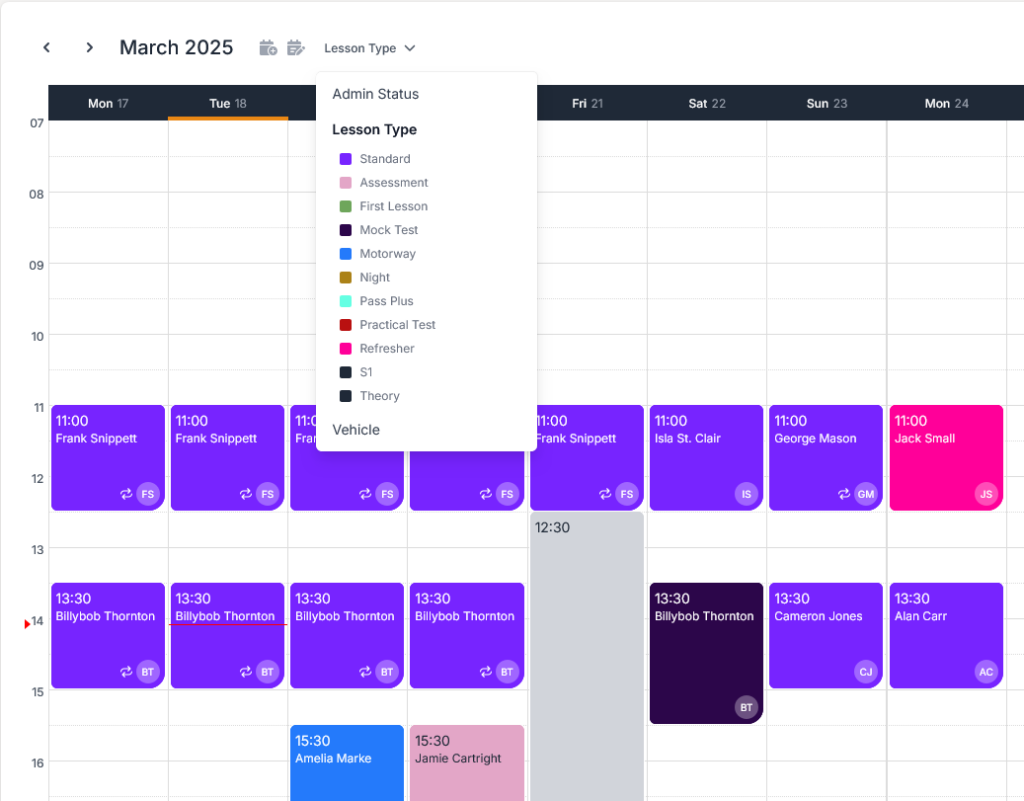
This shows the colour of the lesson based on the lesson type. The default lesson colours are pre-loaded when you start using MDT with standard lessons being yellow, refresher lessons being pink etc.
However, you CAN change these colours to whatever you require by going into the lesson types on your mobile app and reassigning colours as you wish. In the examples in this blog, you will see that I have deviated considerably from the default settings – guess my favourite colour!
Therefore, when setting the lens to Lesson Type you can see all your lessons in their lesson type colour.
Vehicle
This shows the colour of the lesson based on the vehicle that the student is assigned to. The colour that it displays for each vehicle is initially randomly generated i.e., it is not based on the colour of your actual vehicle (just in case you have 3 red cars), but it will subsequently always appear in that generated colour. Therefore, if you have 2 vehicles, one manual and one automatic, once the colours are assigned, for example, manual comes up as blue and automatic comes up as yellow, by using the vehicle lens, you will always know which vehicle you require for a given lesson. This is, of course, dependent on you assigning the student to a vehicle on their profile.
If no vehicle has been assigned, the lesson will appear in grey. If you do not have any vehicles in the system, then you will not get that option on the list of available lenses.
… and finally
We appreciate that this might seem like a really insignificant change that surely can’t be more important than some of the other features/changes that we have on our schedule. However, one of the keys to efficient software development is being able to align what we need to do with the resources that are available at a given moment and this little nugget fitted in beautifully whilst there was a brief but necessary wait in another piece of development. Nothing has been delayed as a result. 😊
For technical support, to report problems with the app or if you have any questions about this release, please email support@mydrivetime.co.uk.